
Working with event states
Last updated: September 2, 2025
In Videosync, everything happens at the same URL (e.g., https://demo.videosync.fi/introduction). This simplifies sharing on social media and in invitations, but requires understanding how event states work.
Event states control what attendees see when they visit your event URL.
Previewing event states
Preview how each state looks before going live.
Click Preview in the event edit top bar to enter preview mode.

In preview mode, select a state from the bottom-left navigation to see exactly what your audience will see.
Working with event states
Change event state from the Change event state menu in the top bar. Click Save for changes to take effect.
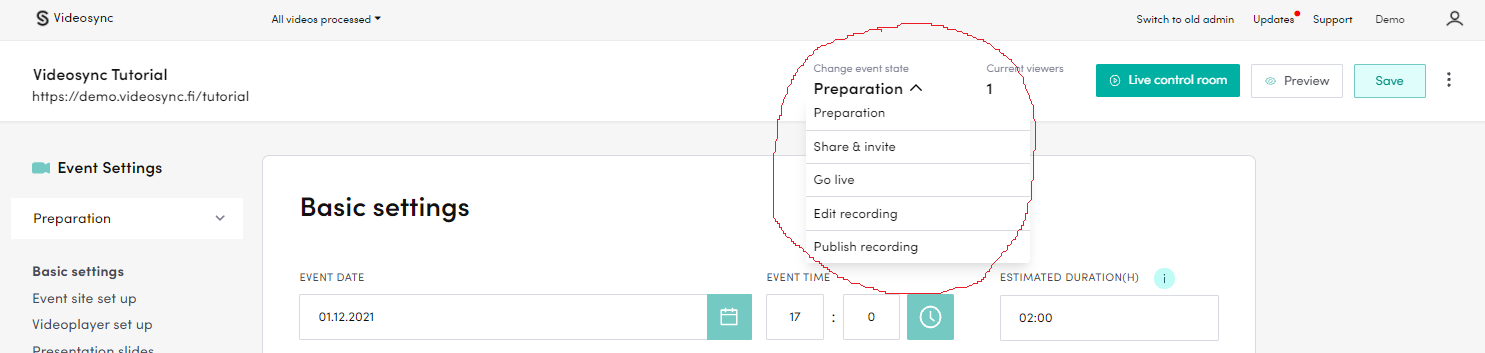
There are five event states:
-
Build: The event URL is not publicly visible. Use this state to configure settings without affecting the audience. Complete all settings before moving to the next state.
-
Share: The event site becomes publicly visible. Use this state when ready to invite attendees and promote the event on social media.
-
Live: Replaces the placeholder with the live video player. Ensure your stream is running before switching to this state. This change can only be made in the live tool.
-
Edit recording: After your live event ends, the recording placeholder appears. Edit your recording while attendees see the placeholder.
-
Publish recording: Makes the edited recording available to attendees.
FAQ
Users report autoplay isn’t working. What’s wrong?
Modern browsers restrict autoplay significantly. It typically only works if visitors have previously interacted with your site. Assume autoplay will be blocked for new visitors.
Can't find what you're looking for?
Our AI assistant is here to help you find the information you need.